Rikaido turns your own answers into a quiz. You answer 2-choice questions about yourself, send the link, and your friends try to guess what you picked. It's free, there's no sign-up, and it works in your phone's browser. This guide goes through each screen, from the first tap to the moment a friend opens your link.
Main edition or Love edition?
There are two places to start. The steps are the same in both; the editions differ in their questions and in the quiz lengths you can choose.
- Main edition (rikaido.me/en): questions come from six categories (Food, Love, Fun & Sports, Real Talk, Personality and Daily Life). You can choose 30, 60, 90, 120 or 150 questions.
- Love edition (rikaido.me/en/love): love and dating questions only. You can choose 30 or 50 questions. The "💘 Love" link on the main home page takes you there too.
In both editions, the questions are drawn at random from Rikaido's own question bank. You can't write your own questions or pick particular ones, but you can swap any question you'd rather not answer (see Step 3).
Step 1: Enter your nickname
Tap "Make my quiz" on the home page. The first screen, "First, your name", asks for a nickname of up to 20 characters. It becomes the title of your quiz, and the screen says so: "This becomes the quiz title, so use a name your friends know." Tap "Next" when you're done.
Everyone who opens your link will see this nickname, so don't use your full real name. For more on what to leave out, see A weird name or a mean entry in your ranking?
Step 2: Choose how many questions
Next comes "How many questions?". In the main edition, each option takes the same number of questions from every category: 30 questions means 5 from each, and 150 means 25 from each. The 30-question option is labelled "Popular". In the Love edition, the choices are 30 or 50.
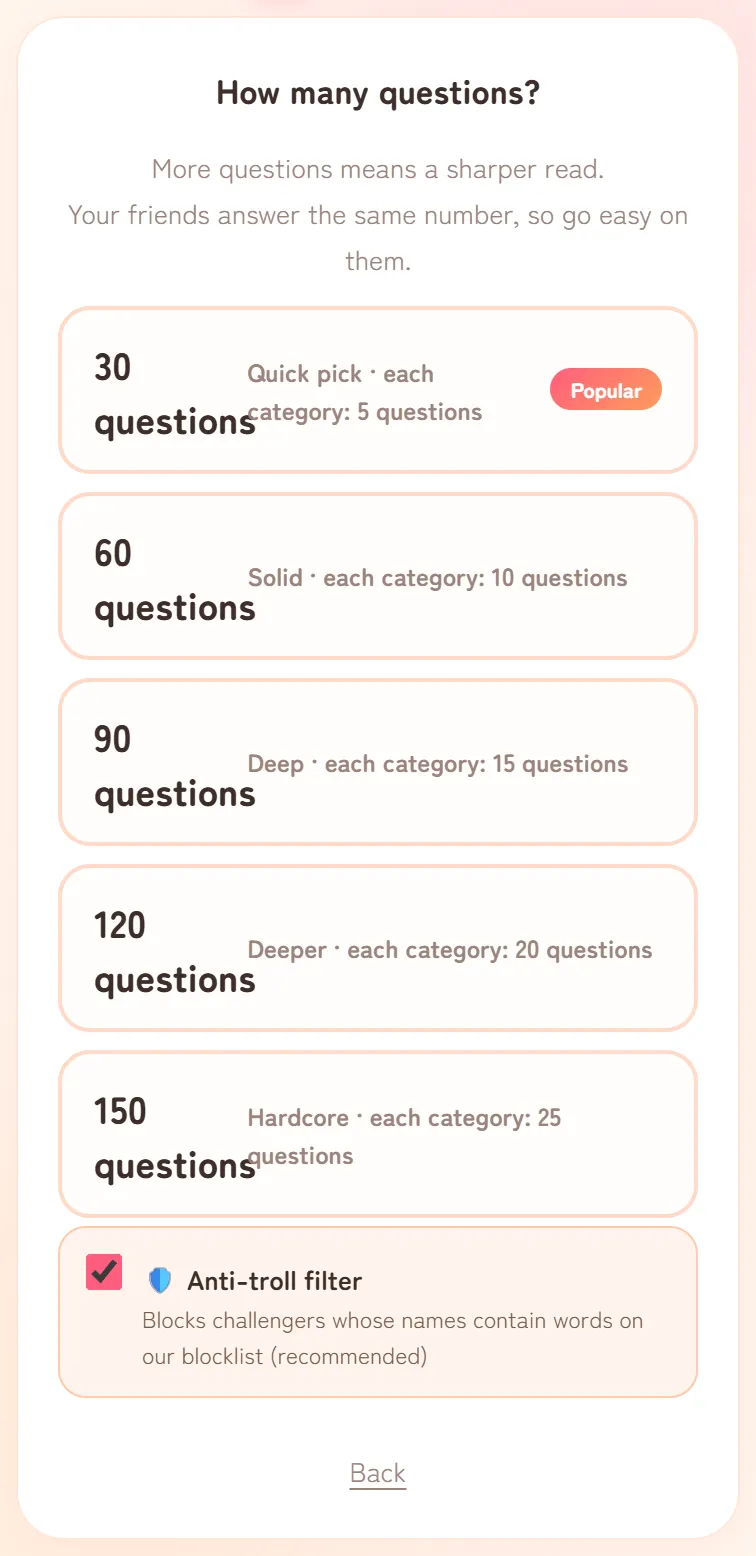
The screen sums up the trade-off: "More questions means a sharper read", but "Your friends answer the same number, so go easy on them."
Below the options is the "🛡️ Anti-troll filter". It's ticked by default and stops players from using nicknames that contain words on our list of slurs and explicit terms. No list can catch every word or spelling, so some rude names will still get through, but we recommend leaving it on: it's set when the quiz is made and can't be switched on later.
Tap the length you want, and the questions begin.
Step 3: Answer as yourself
Each question shows its category, the prompt "Which one are you?" and two options. Tap the one that's true for you, and the next question appears straight away. The counter at the top shows how far along you are, for example 1 / 30. In the main edition, the categories take turns, so you won't get a long run of questions from one category.
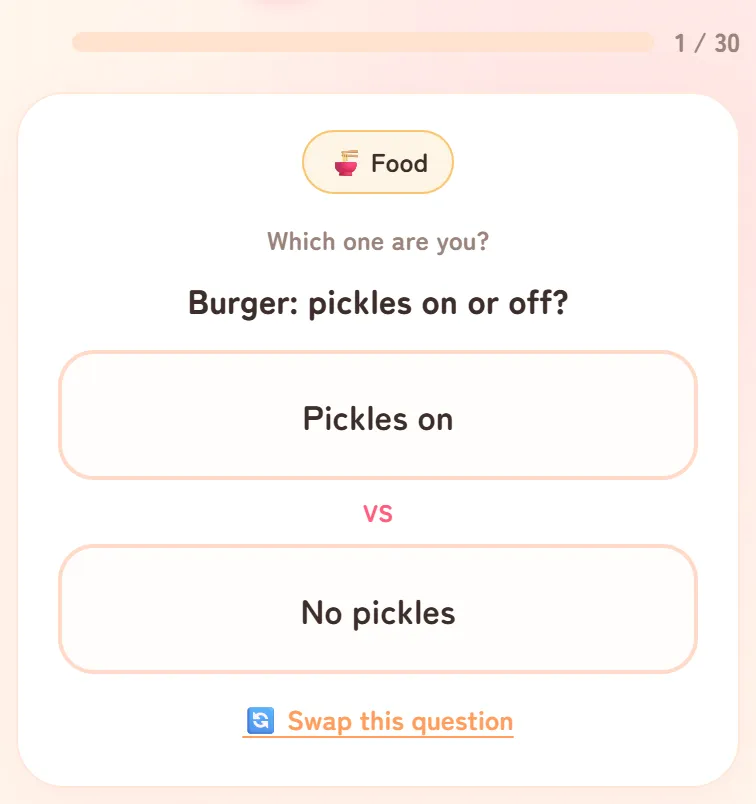
- "🔄 Swap this question" replaces the question with another one from the same category. If the category has nothing else to offer, the app tells you.
- The ← button at the top goes back to the previous question so you can change your answer. It appears from the second question onwards.
- Answer honestly. Your answers become the answer key: a friend scores a point each time they guess the option you chose.
Your quiz is saved only after you answer the last question. If you leave before then (tapping the logo asks "Quit the quiz and go back home?"), nothing is saved. Once your quiz is saved, your answers are also added anonymously to the totals on Everyone's answers.
Step 4: Send the link
After your last answer, the app saves your quiz and shows "Quiz ready!" with your quiz link.
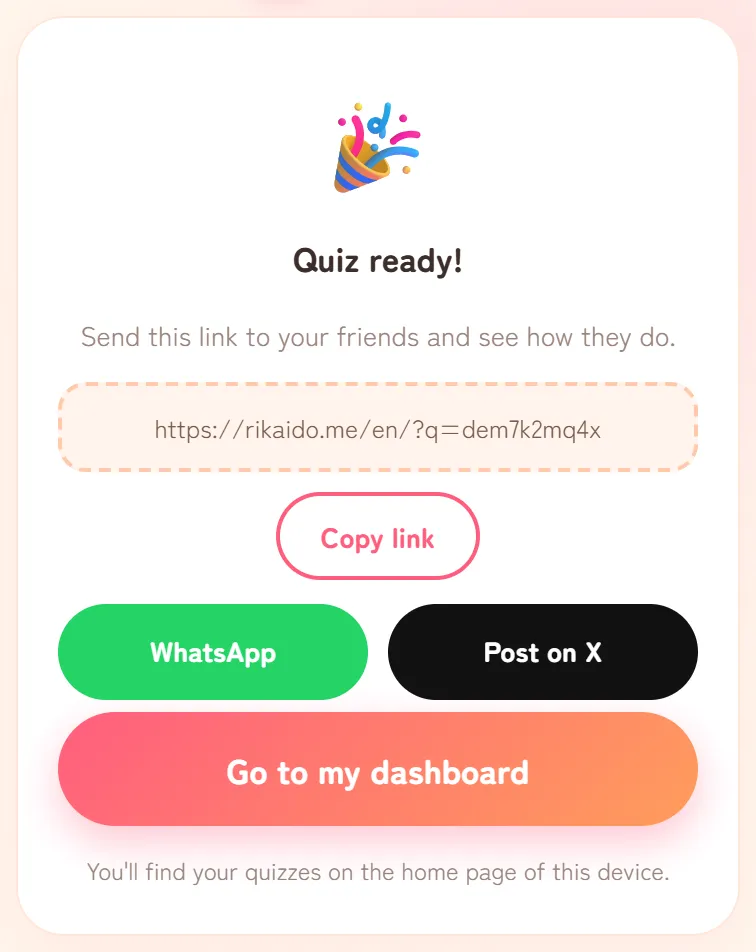
- "Copy link" copies the link, so you can paste it into any chat or app. The button briefly changes to "Copied!".
- "WhatsApp" and "Post on X" open that app with a short message and your link filled in.
- "Go to my dashboard" opens your quiz as its creator. This is where results appear.
Anyone who has the link can play. That makes sharing easy, but it also means that if you post the link somewhere public, people you don't know can play too. Sending it straight to friends or a group chat keeps it closer to people you know, although anyone can pass a link on.
The note under the buttons says "Your quizzes are always waiting on the home page of this device." That list is saved in the browser you used, so it's a good idea to keep a copy of the link as well. If a quiz ever goes missing from the list, see Can't see your results?
What your friends see
When a friend opens your link, they see your nickname, the number of questions and a "Play" button. They can also tap "Just see the ranking" to check the scores so far first.
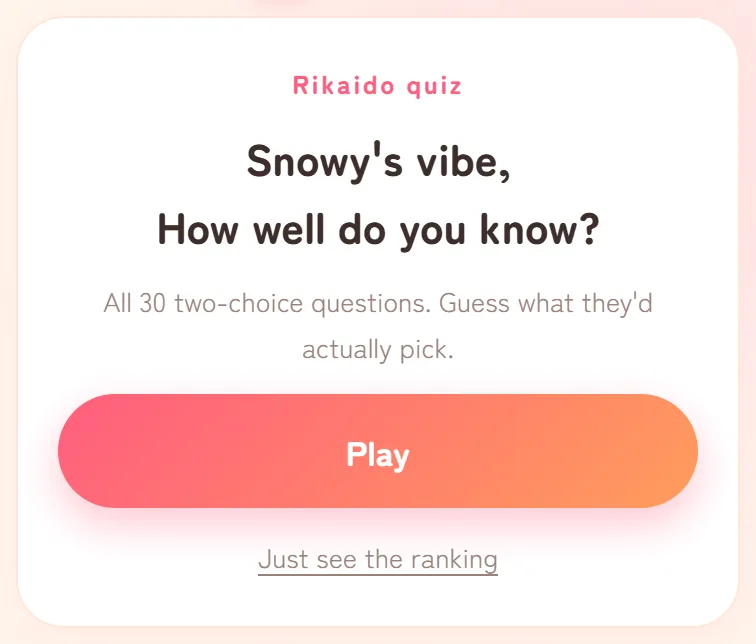
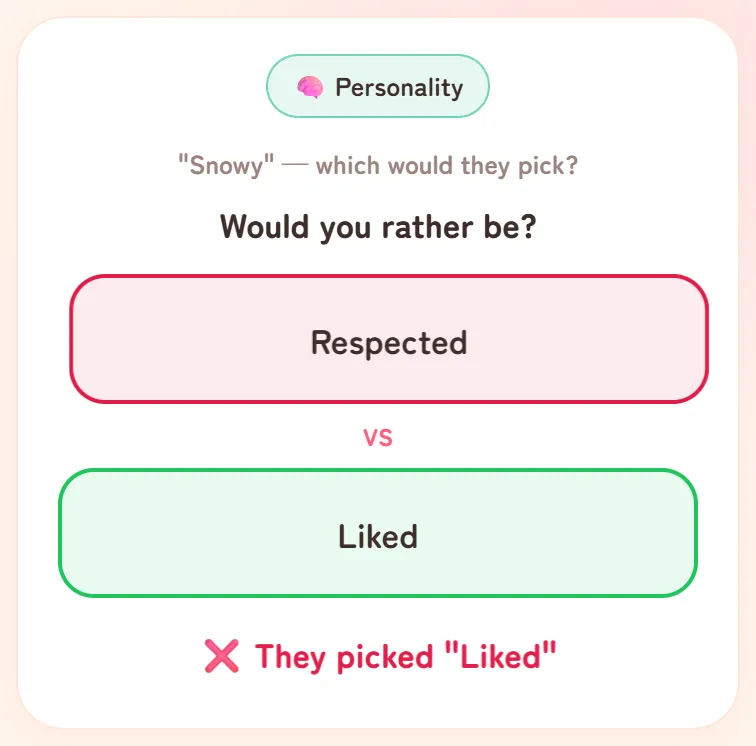
After tapping "Play", they enter their own nickname ("This is the name that shows on the ranking.") and start. For each question, they guess which option you picked and find out straight away: "⭕ Nailed it!" for a match, or a message naming your real answer for a miss. Two or more correct guesses in a row bring up a streak counter.
When they answer the last question, their result is saved to your ranking. They see their score, a title such as "Best friend", the ranking and, in the main edition, a breakdown by category. Your friends don't need an account either: they only enter a nickname. How to read Rikaido results explains each part.
Check how it's going
To see who has played, open your quiz link on the same device and browser you made it on. Rikaido recognises you and opens your dashboard instead of the play screen. You can also find your quiz under "Your quizzes" on the home page and tap "See results →".


To see your quiz the way a friend does, tap "Try your own quiz (nothing gets recorded)" on your dashboard. It opens a test run marked "Test run — nothing is saved to the ranking", so your guesses stay out of your ranking.
For short answers to other common questions, see How to Play & FAQ.